

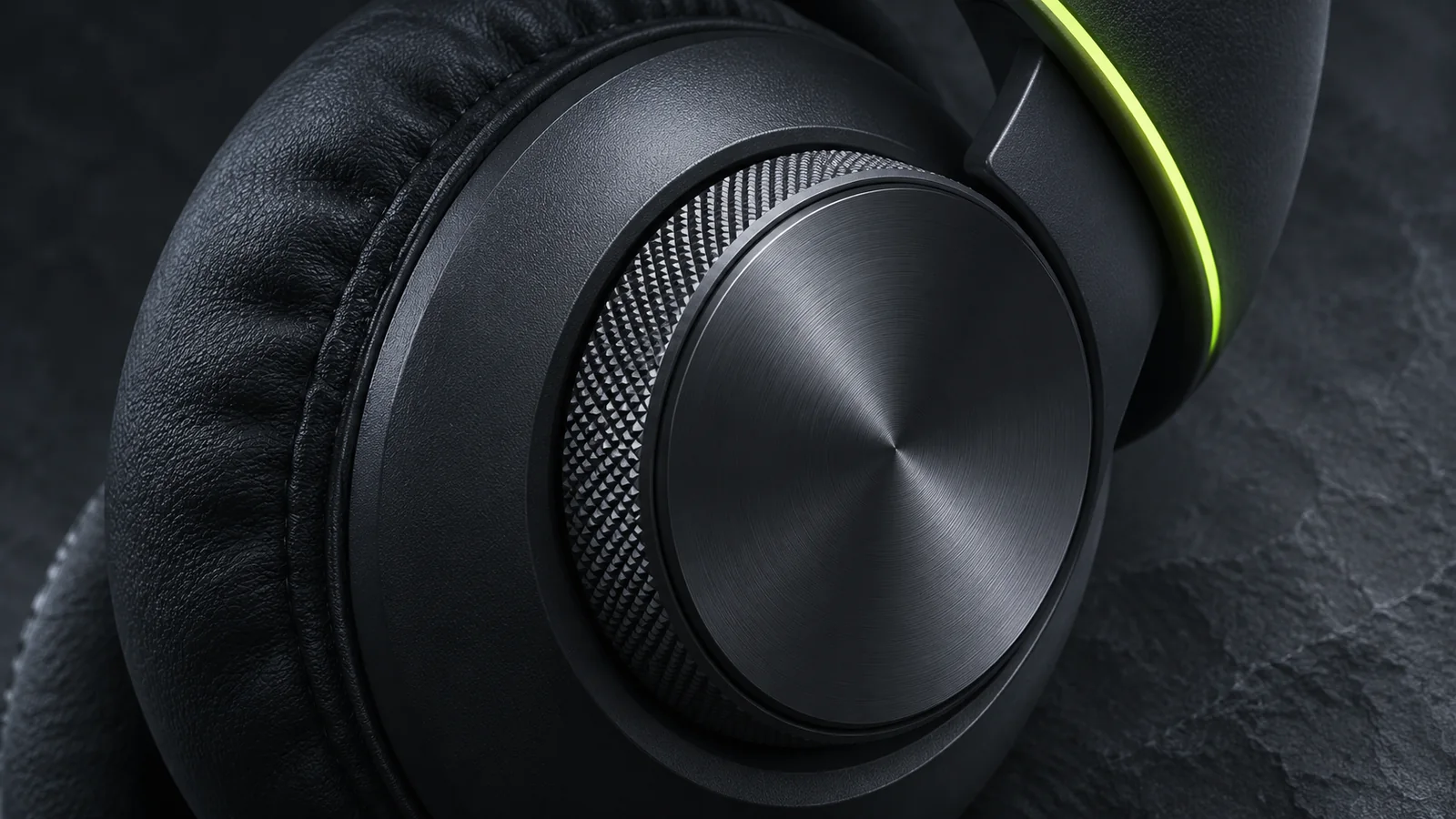
For GTA 6 on the Xbox Wireless Headset, use the left earcup dial to balance game sound and party chat. The right dial adjusts overall volume. Start near the middle on the left and move toward game audio if party voices drown out Jason or Lucia.
Why can you hear your phone but not the Xbox?
The headset can pair to a phone over Bluetooth while staying connected to a console. If a mobile call works but game audio does not, verify Xbox pairing and check whether the left dial is turned entirely toward chat before changing the phone connection.
Why did the TV go quiet after you paired the headset?
Under Xbox Volume & audio output, look in Additional options for Mute speaker audio when headset attached. That determines whether the TV or receiver plays sound while the headset is active. Use the earcup dial for what you hear in the headset.
Which dial should you use if friends drown out GTA 6?
Use the left dial to bring the game up relative to party chat. If both are too quiet, use the right dial for overall volume. If traffic and music are loud enough and only the dialogue is quiet, adjust the game’s own Audio mix.