

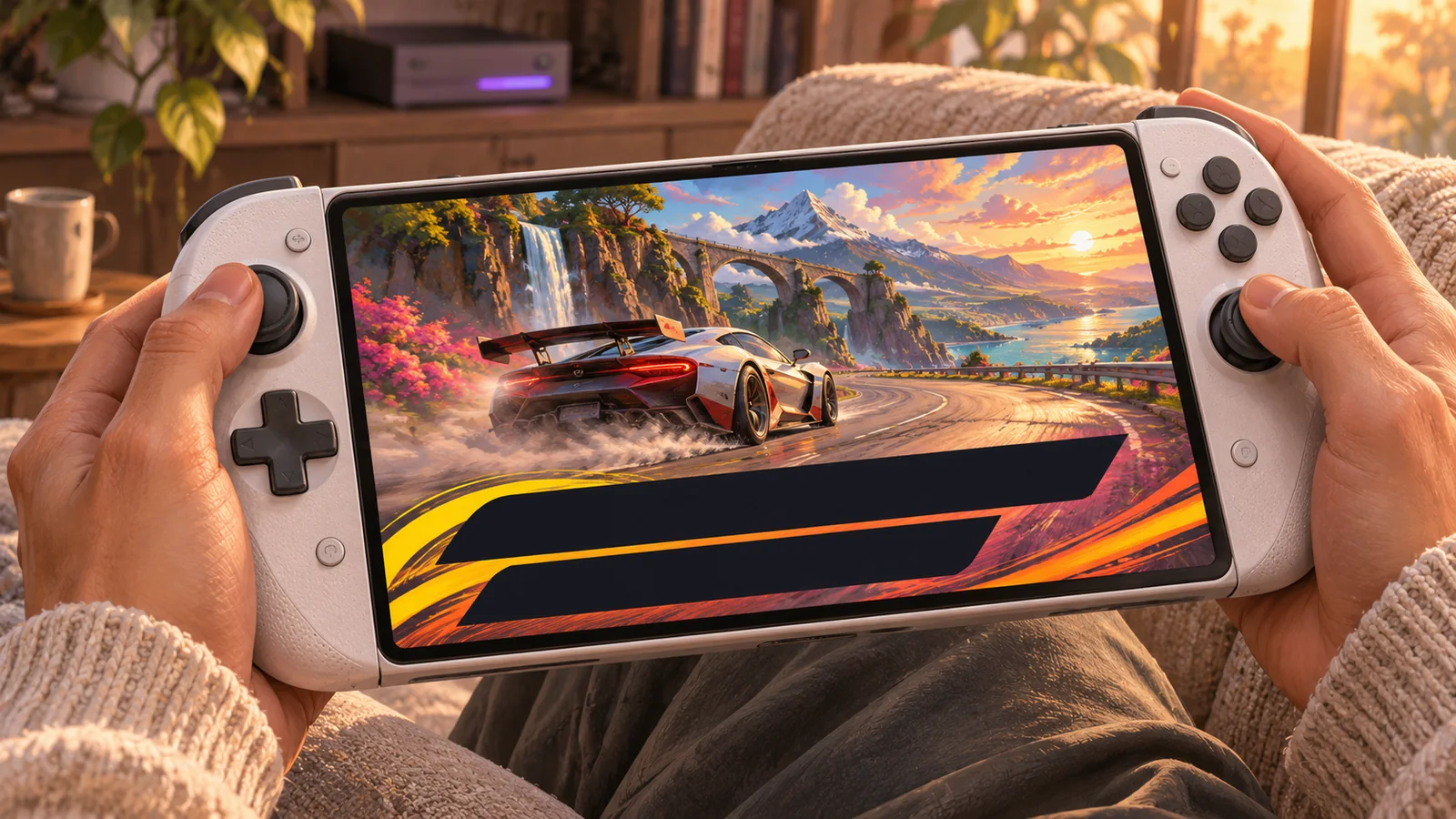
On PlayStation Portal Remote Play, PS5 Screen Reader, Text Size, Bold Text, High Contrast and Reduce Motion can carry over to the streamed session. Sony lists PS5 Zoom, Invert Colors, Color Correction and Custom Button Assignments as settings that do not. GTA 6’s own accessibility settings stay with the game running on the PS5.
Which accessibility menu should you use first?
Match the setting to the screen you need to read or the control you need to operate. Use the PS5 menu for the console interface and GTA 6’s controls for the game.
| Problem | Where to start |
|---|---|
| PS5 menu labels are too small | PS5 Accessibility, Text Size |
| GTA 6 subtitles are too small | GTA 6 Settings, UI, Subtitles & Captions |
| Map icons are hard to identify | GTA 6’s map and minimap icon options |
| A remapped PS5 button works on TV but not on Portal | GTA 6 Control Scheme for available presets |
Does the PS5 Screen Reader also narrate GTA 6?
The PS5 Screen Reader reads the console menus in a Remote Play stream. In GTA 6, open Audio, Narration for the game’s own reader. If a landmark is silent in the game’s map, enabling the PS5 reader will leave it silent.
What can you use instead of system Zoom?
If a larger label or marker addresses the specific problem, try the game’s UI scaling or map icon options. For color or contrast, GTA 6 has display and UI settings you can adjust during your session. Check the same screen from your usual handheld position after changing one item.