

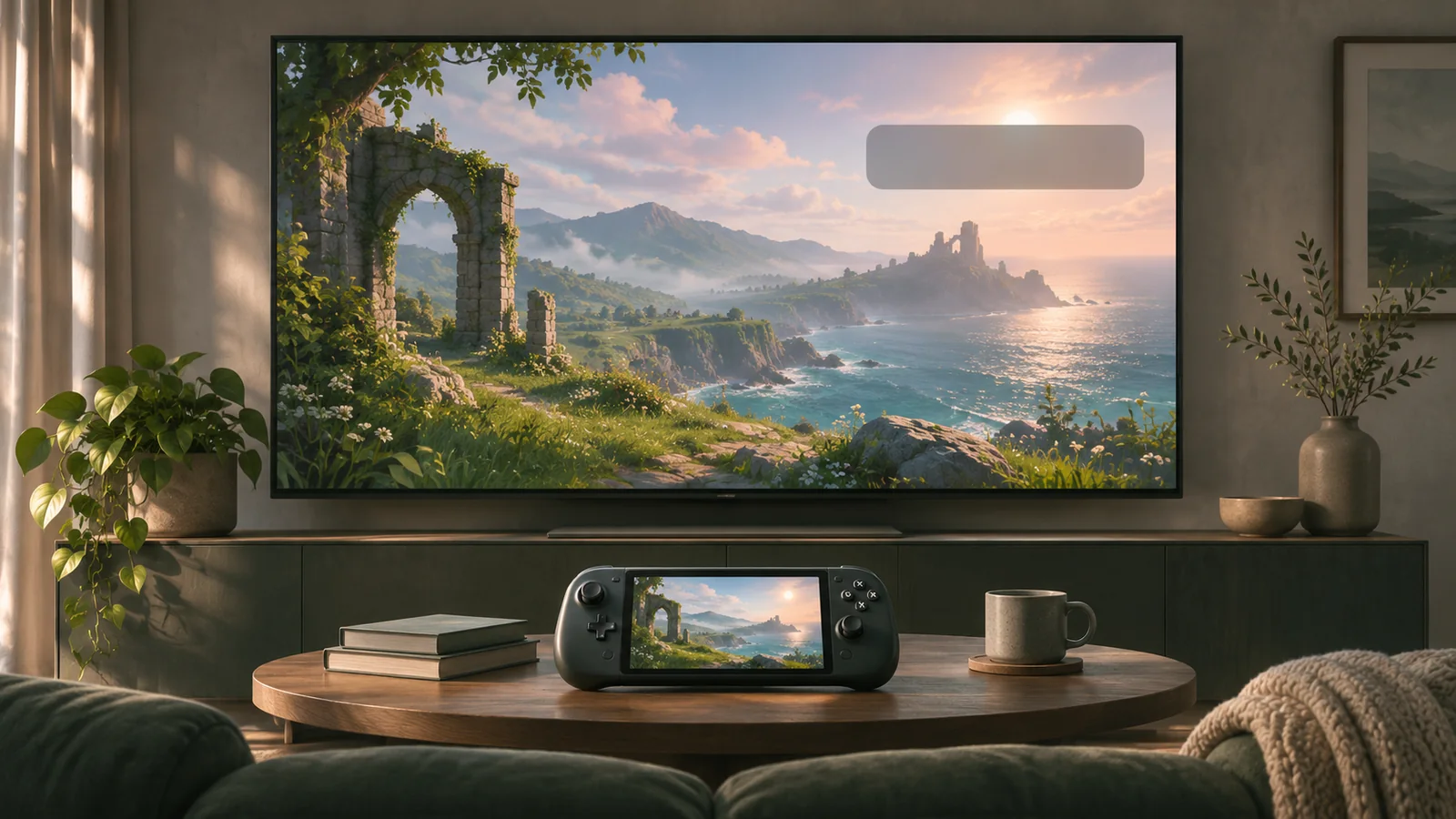
To hide the “Remote Play connected” banner over GTA 6, open Settings, System, Remote Play on the host PS5 and enable Hide Remote Play Connection Status. Sony says the message can appear when another user signs into the console while you are connected.
Which PS5 setting hides the status without ending the stream?
Turn on Hide Remote Play Connection Status on the host PS5. Keep Enable Remote Play active. The current session can continue while the PS5 stops displaying the banner.
How do you actually end the Remote Play session?
Choose Disconnect in the app or on Portal. If you’re done playing, save your campaign before leaving the session.
What if you meant a GTA 6 overlay?
The condition here is the words “Remote Play connected” at the top of the screen. For the game’s minimap, mission instructions or other icons, open GTA 6 Settings and its UI options. You can adjust those independently without toggling the PS5 banner.