

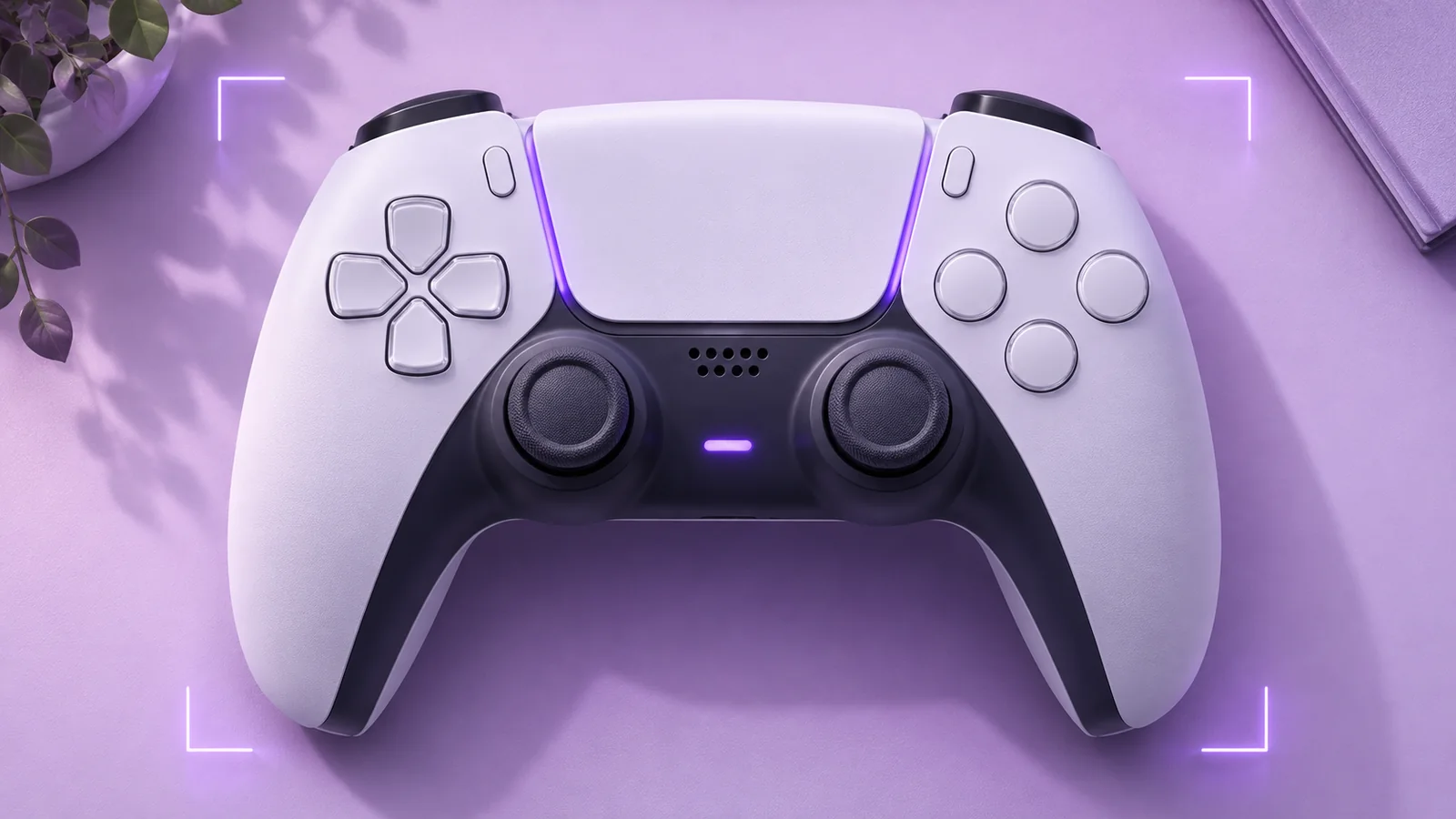
On PS5, go to Settings → Captures and Broadcasts → Captures → Shortcuts for Create Button and choose Easy Screenshots. A short press of Create now saves the current GTA 6 frame directly.
How do you take the screenshot during play?
Switch back to the game and try it on a frame you can recognize. Capturing directly is useful for a moving car or character, where bringing up the Create menu first can cost the moment you wanted.
Which setting changes the screenshot format?
Choose Screenshot Format before capturing a set if dimensions or HDR matter to your workflow. HDR capture is available while the console is attached to a compatible display.
Where do you confirm the shortcut worked?
Open Recently Created and look at the latest GTA 6 image. If a quick press of Create still opens a menu, return to the PS5’s Captures settings and confirm that Easy Screenshots is selected there.