

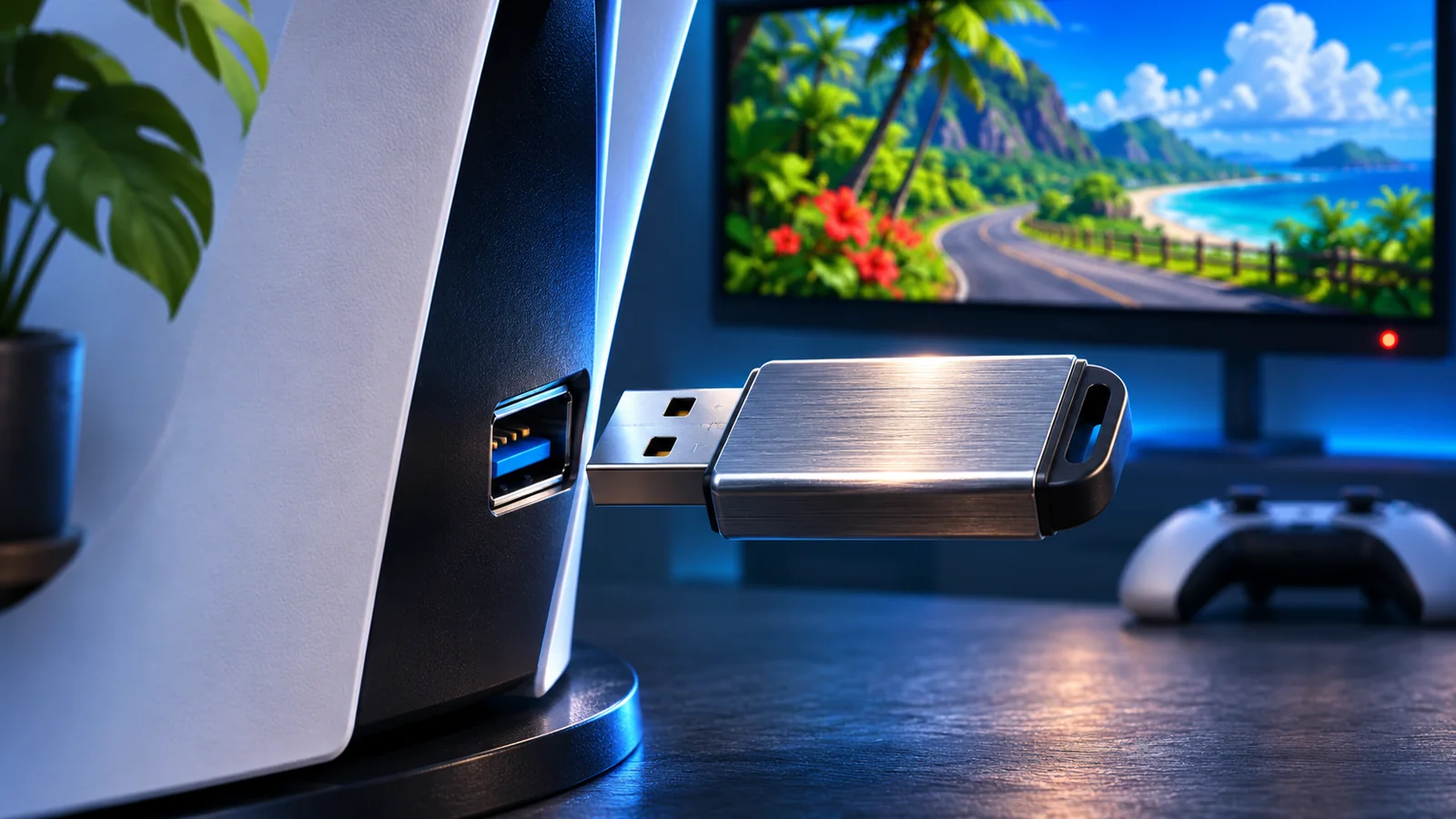
To record GTA 6 in 4K on PS5, use a compatible 4K display and configure manual video recording under Settings, Captures and Broadcasts, Captures, Video Clip Format. Then use Create to start a new recording. When it’s done, copy the clip from Media Gallery to a USB drive for the 4K file.
How do you start a manual 4K recording?
Press Create and select Start New Recording just before the moment you want. Use the same menu to stop. Manual recordings can last up to an hour. If the moment already happened, Save Recent Gameplay uses the console’s recording buffer.
How do you copy the original clip to USB?
In Media Gallery, find the GTA 6 clip, choose More and select Copy to USB Drive with a supported USB device connected. Open the copied file on a computer and check that it plays and contains the scene you planned to use. The console retains its Media Gallery copy.
Why is the 4K clip missing from the PlayStation App?
The PlayStation App uploads eligible clips up to 1080p and three minutes. Use the USB copy when the resolution or length falls outside that range. If you only need a short phone preview, make a separate shorter, lower-resolution recording from the console.