
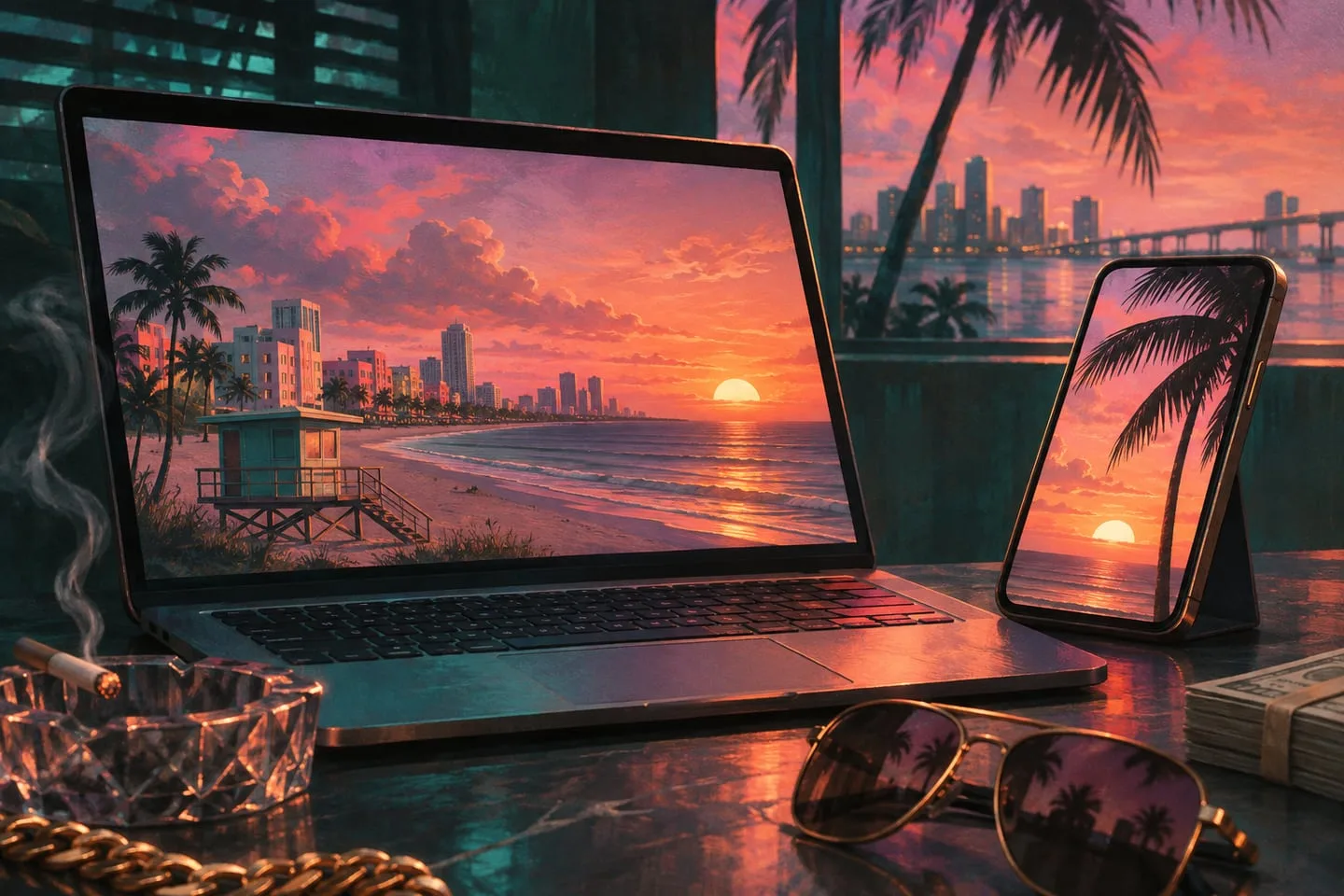
GTA 6 wallpapers — choose official artwork that fits your screen
Compare portrait and landscape crops, keep faces clear of interface elements and choose the closest official image size.
 GTA Lab3 min read
The best wallpaper depends on the crop
A wide scene can lose its main subject when a phone fills a portrait display. Begin with official artwork close to your screen’s shape, then check where faces, the horizon and interface elements will land. Resolution matters, but composition often decides whether the image still works after the operating system crops or repositions it.
Use the artwork download options
Rockstar’s official media library offers artwork in multiple sizes. Pick the option closest to your screen shape before downloading. A wide rooftop composition can work on a desktop but lose one of the characters on a narrow phone when the system fills the screen.
Check empty space behind the interface
Preview the crop before setting it. The clock needs clear space and a row of app labels benefits from an even background. If the image has a conspicuous face or logo near an edge, try a different crop or a differently framed official image instead of stretching it.
Use a phone crop and a desktop crop deliberately
For a phone background with the clock across the top, place the strongest subject lower in the frame or choose art with open sky. For a desktop with controls along the bottom, look for an open road, water or shadows there. A monitor stretched across two screens needs a different image from a tightly framed portrait. Start from a matching official download instead of stretching the same file.
Test the edges in the actual system preview
Compare what is visible with the lock screen and home screen controls present. A centered subject can work well in portrait and still lose important details to the clock. Check the sharpest edge, not just the person’s face; severe cropping makes blur easier to see near text and icons. Use the source title when you want to find a different official size later.
Check the home screen and lock screen separately
A lock-screen clock can cover a face that remains clear behind home-screen icons. Preview both layouts before deciding the artwork is a poor fit. On a desktop, leave a quieter area for icons if you use many of them. On a phone, a portrait composition can preserve both protagonists without squeezing a wide scene into a narrow frame. Keep the original downloaded artwork so you can try another crop later. Use Rockstar’s media library to retain the official source and avoid a compressed repost.